FIVEWIN Download – Android, iOS & Desktop Installation Guide
Access FIVEWIN directly from your Android phone, iPhone or desktop computer by adding the website to your device. The installation guide explains how to use browser features such as Add to Home Screen and Install to create convenient shortcuts. Follow the instructions for your device without searching for a separate APK file or desktop installer.
How to Download and Install the App
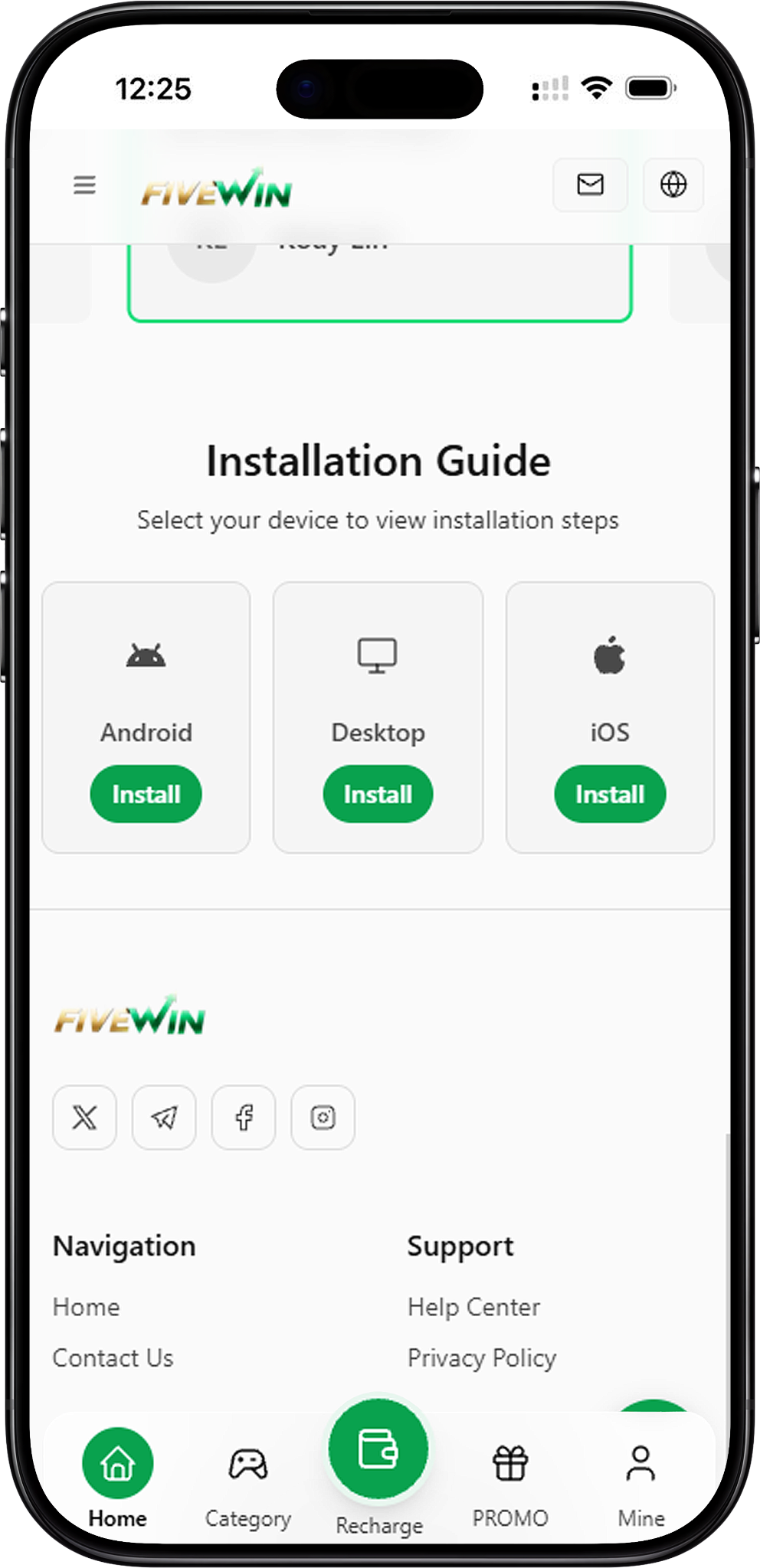
The installation guide provides instructions for Android, iOS and desktop devices. Instead of requiring a separate installation file, the process uses browser features to create a home screen shortcut or install the website where supported.
Step 1: Open the Installation Guide
Visit the FIVEWIN website and navigate to the Download page. The installation guide displays three device options: Android, Desktop and iOS. Each option includes an Install button that opens the corresponding instructions.
Step 2: Select Your Device
Choose Android if you are using an Android smartphone, iOS if you are using an Apple iPhone, or Desktop if you are accessing the website through a computer. Click or tap Install beneath your selected device to view the installation steps.
Step 3: Follow the Installation Instructions
Follow the instructions displayed for your device. The Android and iOS guides each contain three steps, while the Desktop guide contains two steps. Depending on your browser, you may need to select Add to Home Screen, Create shortcut or Install.
Android Installation Steps

Android users can add the website to their home screen through a compatible browser. The process uses the browser’s installation or shortcut feature rather than requiring a separate APK download. Follow the three steps below to complete the setup.
Step 1: Open Your Android Browser Menu
Open the FIVEWIN website in your Android browser. Tap the three-dot menu or settings icon, usually located near the address bar, to view the available browser options.
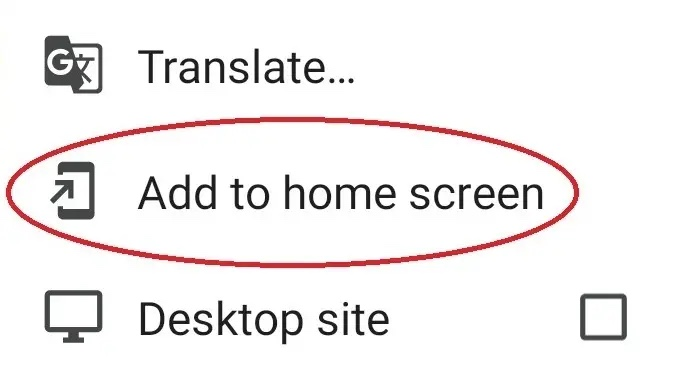
Step 2: Select Add to Home Screen
From the browser menu, locate and select Add to Home Screen. Depending on your browser, this option may appear as Install app or a similar installation command. Follow the option displayed on your device.
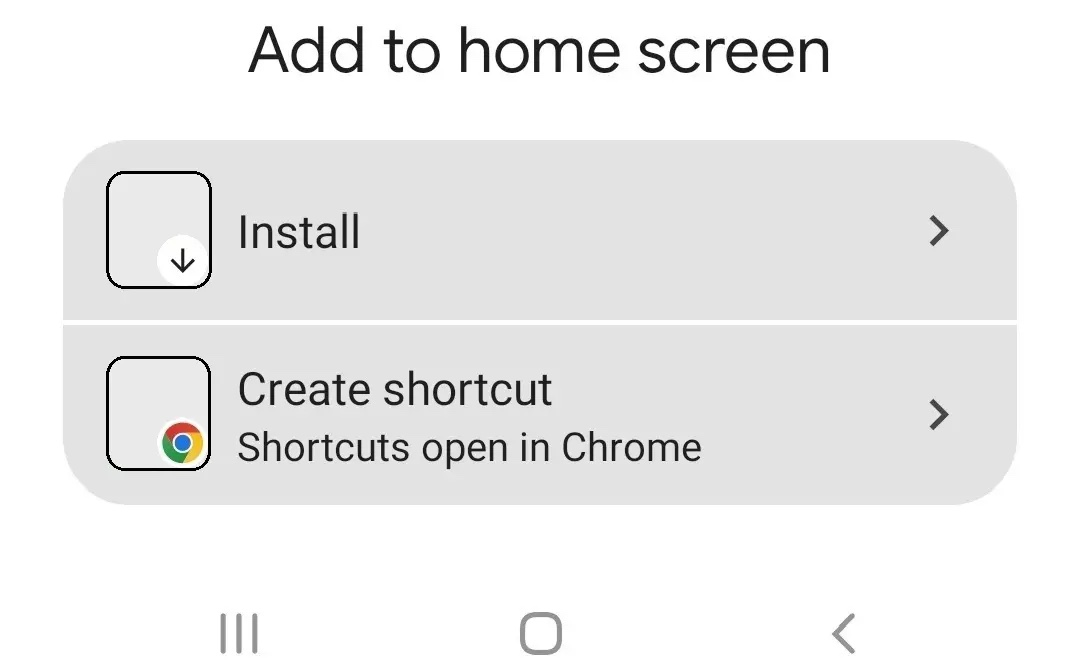
Step 3: Tap Install to Complete the Setup
When the installation prompt appears, select Install to continue. If your browser displays Create shortcut instead, follow the available shortcut instructions. Once completed, locate the website icon on your home screen and tap it to open the platform.
iOS Installation Steps
iPhone users can add the website to their home screen using Safari. This method creates convenient access through a home screen icon without requiring a separate App Store download. Follow the instructions below to complete the setup.
Step 1: Open the Share Menu on Your iPhone
Open the FIVEWIN website in Safari on your iPhone. Locate the Share button, represented by a square with an upward arrow, and tap it to display the available sharing options. Its position may vary depending on your Safari layout.
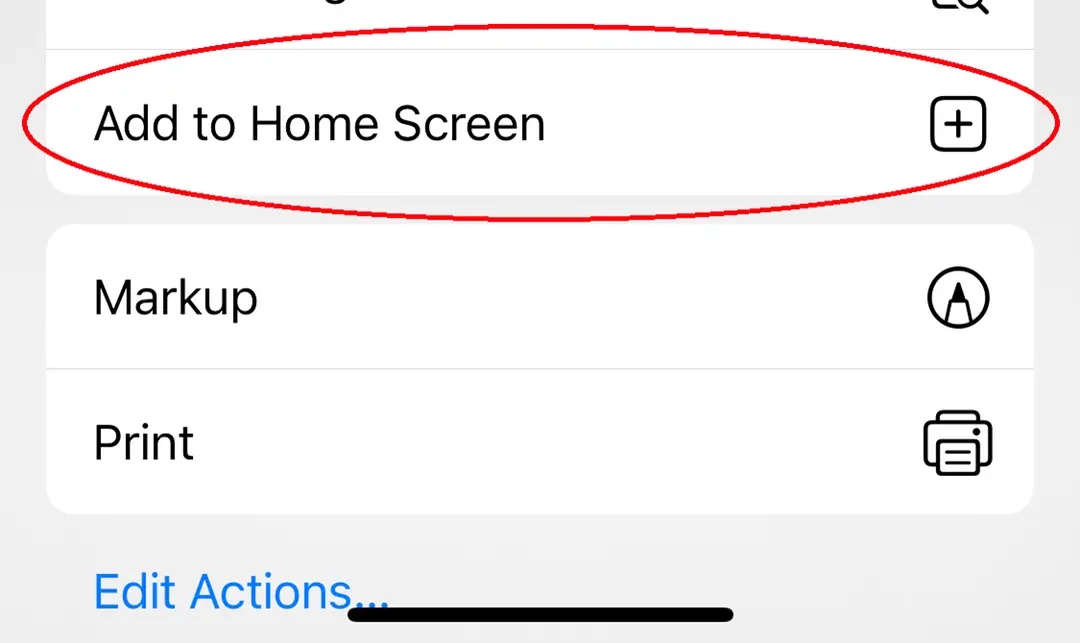
Step 2: Select Add to Home Screen
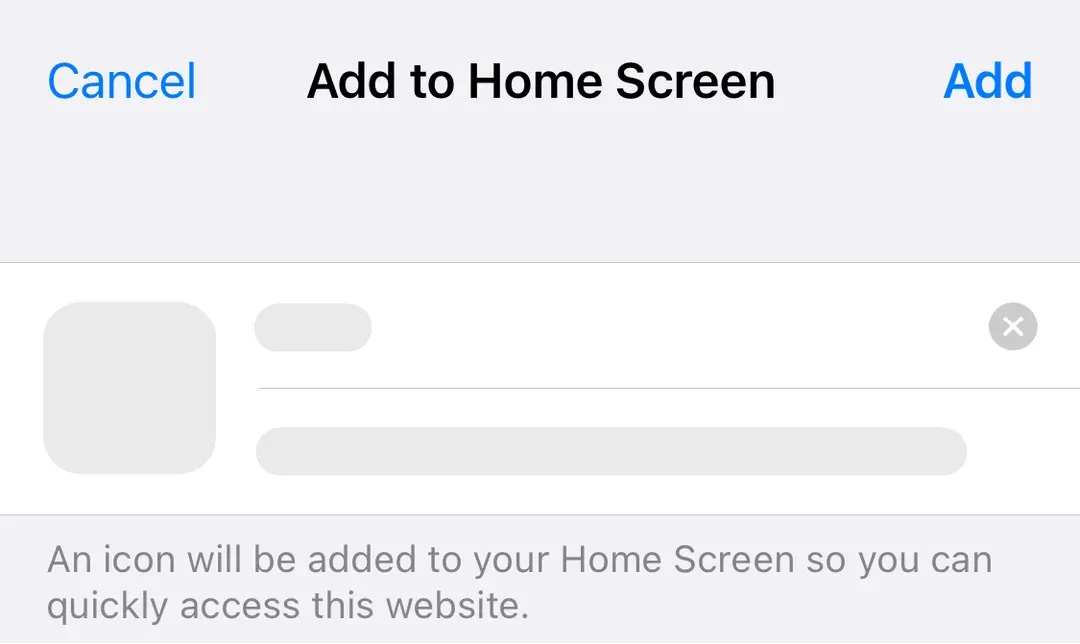
Scroll through the Share menu and select Add to Home Screen. This opens the screen where you can review the website name and confirm the home screen shortcut.
Step 3: Tap Add to Finish Installation
Review the displayed information and tap Add to confirm. A website icon will appear on your iPhone home screen, allowing you to access the platform directly without opening Safari manually each time.
Desktop Installation Steps
Desktop users can access the website through a browser on Windows or macOS. Compatible browsers may provide an Install option that creates an application-like shortcut. Follow the two steps below if your browser supports this feature.
Step 1: Locate the Desktop Install Button
Open the FIVEWIN website in a compatible desktop browser. Look for an Install icon near the right side of the address bar. If the icon appears, click it to open the installation dialog. The option may not be available in every browser or configuration.
Step 2: Click Install to Complete the Setup
When the installation dialog appears, click Install to confirm. Follow any additional prompts displayed by your browser. Once completed, you can launch the website using the shortcut or application entry created during installation.
App Installation and Device Compatibility
The download guide focuses on browser-based installation for Android, iOS and desktop devices. Understanding the available methods can help you choose the appropriate setup and distinguish website shortcuts from standalone application downloads.
Android App vs APK Download
An APK is an Android application package used to install software. However, the Android installation guide describes using Add to Home Screen rather than downloading a separate APK file. Follow the instructions provided on the website and avoid downloading installation files from unverified sources.
Apple iOS App Installation
The iOS installation method uses Safari’s Add to Home Screen feature to create a website shortcut on an iPhone. This allows users to open the platform directly from their home screen without downloading a separate application from the App Store.
Desktop Installation on Windows
Windows users can install supported websites through compatible browsers. If an Install icon appears in the address bar, select it and follow the browser prompts. The resulting shortcut or browser-installed application provides direct access to the website.
Desktop Installation on macOS
macOS users can also check their browsers for website installation features. Depending on the browser and macOS version, options may include Add to Dock, Install or Create shortcut. Follow the instructions available in your browser to create convenient access.
Browser Installation vs Standalone App Downloads
Browser-based installation uses features such as Add to Home Screen or Install to create a shortcut or web application. This differs from downloading an APK, desktop executable or native mobile application. The installation methods described in this guide focus on browser-based access.
Frequently Asked Questions About Downloading

Find answers to common questions about FIVEWIN installation, Android and iOS setup, desktop compatibility, APK files and browser shortcuts.
How do I download and install FIVEWIN?
Open the Download page and select Android, iOS or Desktop. Choose Install beneath your device category to view the instructions, then follow the available browser installation steps.
Can I install the website on Android?
Yes. Open the website in a compatible Android browser, access the browser menu and select Add to Home Screen or Install app. Follow the displayed prompts to create a shortcut or install the website where supported.
Does FIVEWIN provide an APK download?
The installation instructions described here do not include a direct APK download link. Instead, the Android guide explains how to add the website through the browser’s installation or home screen shortcut feature.
How do I install the website on an iPhone?
Open the website in Safari, tap the Share button and select Add to Home Screen. Review the shortcut details and tap Add to place the icon on your iPhone home screen.
Is an App Store download required for iOS?
No. The installation method described in this guide uses Safari’s Add to Home Screen feature. You can create a home screen shortcut without downloading a separate application from the Apple App Store.
Can I install FIVEWIN on a Windows desktop?
The Desktop guide describes a browser-based installation method. Open the website in a compatible browser, locate the Install icon if available and follow the installation prompts.
Can I install the website on macOS?
Website installation may be available on macOS through supported browsers. Depending on your browser, look for Install, Add to Dock or a shortcut creation option and follow the available instructions.
Do I need to download an installation file?
No separate installation file is required for the browser-based methods described in this guide. You can use the available browser features to create a home screen shortcut or install the website where supported.
Why can’t I find the Install button?
The Install option may not appear in every browser or device configuration. Check your browser menu for Add to Home Screen, Add to Dock or Create shortcut. Available options depend on your device and browser version.
What is the difference between Android, iOS and Desktop installation?
Android typically uses the browser menu and Add to Home Screen feature. iOS uses Safari’s Share menu, while desktop browsers may provide an Install option or shortcut creation feature. Each method offers convenient access to the website.
Can I access FIVEWIN without installing it?
Yes. You can open the website directly through a compatible browser without creating a home screen or desktop shortcut. Installation is optional and provides an alternative way to access the platform.
Access FIVEWIN on Your Device
Choose Android, iOS or Desktop to view the installation instructions. Follow the steps for your device to add the website to your home screen or create a shortcut through a supported browser.