FIVEWIN Register – Create Your Account
Create your FIVEWIN account by choosing a username, setting a password and verifying your phone number. The registration form also includes an optional invite code field for users with a referral code. Follow the steps below to complete your account setup, understand the registration requirements and learn how to verify your information before submitting the form.
How to Register an Account Step by Step
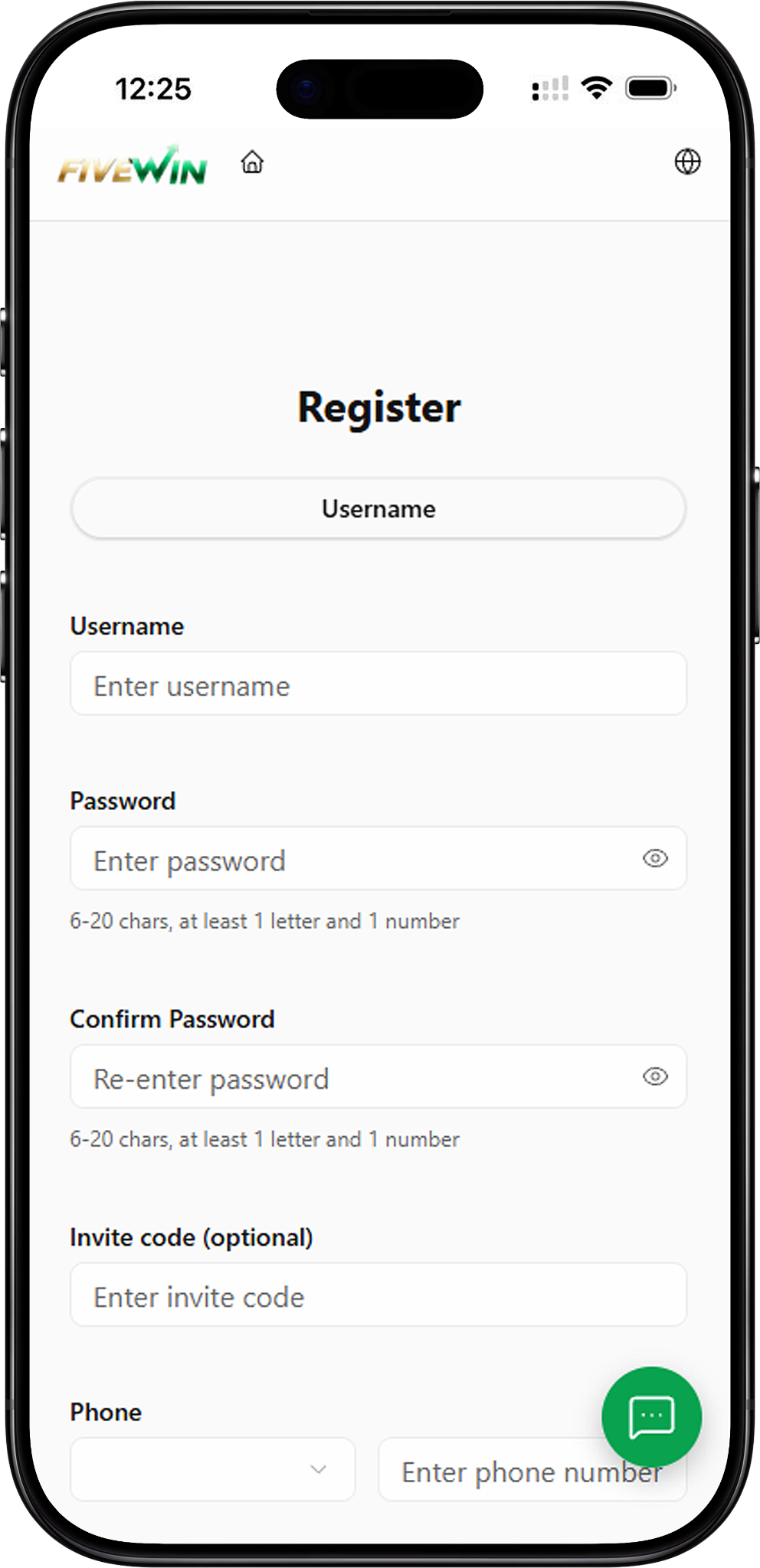
The registration page provides a simple sign-up form for creating a new account. You will need to enter your personal account details, set a password, provide a phone number and complete verification. Follow these steps to submit your registration information correctly.
Step 1: Open the Registration Page
Visit the FIVEWIN website and select Register to open the sign-up form. The page displays the required fields for account creation, including username, password, phone number and verification code.
Step 2: Enter Your Username
Locate the Username field and enter your preferred username. Make sure the information is correct before continuing to the next field.
Step 3: Create and Confirm Your Password
Enter a password containing 6–20 characters, including at least one letter and one number. Re-enter the same password in the Confirm Password field to ensure both entries match. You can use the password visibility icon to review your entries before proceeding.
Step 4: Enter an Invite Code (Optional)
If you have received an invite code, enter it in the designated field. This step is optional, so you can leave the field blank if you do not have a referral code.
Step 5: Enter Your Phone Number
Select the appropriate country calling code from the dropdown menu and enter your phone number in the Phone field. Check that the number is accurate before requesting verification.
Step 6: Request Your Verification Code
Click Get verification code beside the phone verification field. Once you receive the code, enter it in the designated field to continue the registration process.
Step 7: Accept the Platform Agreement
Read the Platform Agreement provided on the registration page. After reviewing the terms and conditions, select the checkbox to confirm your agreement before submitting the form.
Step 8: Complete Your Registration
Review your username, password, phone number and verification code. Once all required fields are completed and the Platform Agreement is accepted, click Register to submit your account registration.
Registration Requirements
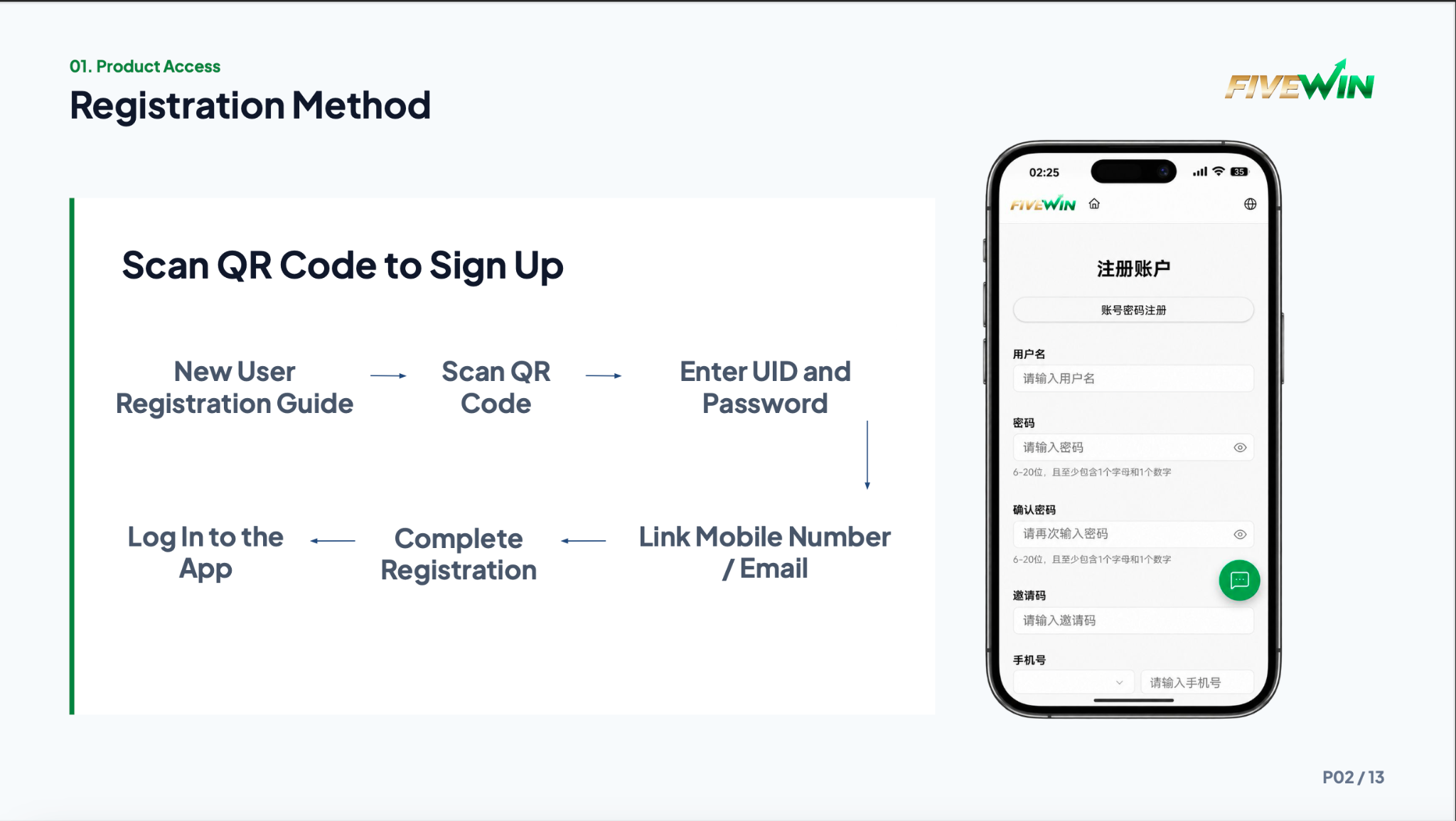
Before creating an account, make sure you have the necessary information ready. Understanding the registration requirements can help you complete the form accurately and avoid common submission errors.
Username and Password
A username is required during account creation. Your password must contain between 6 and 20 characters, including at least one letter and one number. The Confirm Password field must match your original password.
Phone Number and Verification Code
A phone number is required to complete the registration process. Select the correct country calling code, enter your number and request a verification code. Enter the received code in the appropriate field before submitting your details.
Optional Invite Code
The registration form includes an optional invite code field for users who have received a referral code. You can enter the code during sign-up or leave the field empty if you do not have one.
Platform Agreement
Before submitting your registration, review the Platform Agreement and confirm your acceptance by selecting the checkbox. Make sure you understand the applicable terms before proceeding.
How to Use an Invite Code
The sign-up form includes an optional invite code field for users who have received a referral or invitation code. This section explains where to enter the code and whether it is required during account creation.
Where to Enter Your Invite Code
The Invite Code field appears below Confirm Password and above the Phone section. Enter your referral code in the field labelled Enter invite code before continuing with phone verification.
Can You Register Without an Invite Code?
Yes. The invite code field is optional, so you can continue registration without entering a code. Complete the remaining required fields to proceed with account creation.
Is a QR Code Required for Registration?
The standard registration form does not require QR code scanning. You can create an account by entering your details directly into the sign-up form and completing phone verification.
Account and Phone Verification
Phone verification is part of the account registration process. The sign-up form includes a dedicated verification field and a button for requesting a code. Follow the instructions below to complete this step.
How to Request a Verification Code
After entering your phone number, locate the Phone verification code section. Click Get verification code to request a code for the number you provided.
How to Enter Your Verification Code
Once you receive the verification code, enter it in the designated field. Review the code carefully to ensure it has been entered correctly before continuing.
What to Check Before Submitting
Before clicking Register, confirm that your username is correct, both password fields match, your phone number is accurate and the verification code has been entered. Make sure you have also accepted the Platform Agreement.
How to Access Your Existing Account
If you already have an account, you do not need to register again. Select Already have an account? Login now to open the sign-in page and enter your existing login details.
Frequently Asked Questions About Registration
Find answers to common questions about FIVEWIN account creation, sign-up requirements, invite codes, passwords and phone verification.
How do I create a FIVEWIN account?
Open the registration page, enter your username, create and confirm your password, provide your phone number and complete verification. After accepting the Platform Agreement, click Register to submit your details.
Is an invite code required to sign up?
No. The invite code field is optional. You can leave it blank and continue with the required registration information.
What are the password requirements?
Your password must contain 6–20 characters, including at least one letter and one number. You must also enter the same password in the Confirm Password field.
Do I need a phone number to register?
Yes. The registration form requires a phone number and verification code. Enter your phone number, request a code and complete the verification step before submitting the form.
Can I register using a QR code?
The standard registration form does not include a QR code registration option. You can complete the sign-up process by entering your account details and verifying your phone number.
Where can I enter my invite code?
Enter your invite code in the optional field located below Confirm Password and above the Phone section on the registration form.
What should I do if my passwords do not match?
Check the Password and Confirm Password fields to ensure both entries are identical. You can use the password visibility icons to review your entries and confirm that they meet the required format.
Can I log in if I already have an account?
Yes. Select Already have an account? Login now on the registration page to access the sign-in form instead of creating another account.
Create Your FIVEWIN Account
Ready to get started? Complete the registration form by entering your account details, verifying your phone number and accepting the Platform Agreement.